I saw a post on the Ken Moo group about menu items and changing them, and how to achieve this based on seasonality. I.e the specific example was gift cards and changing them to match seasons, i.e Christmas, Mother’s Day and New Year.
This can be done, and WordPress by default has a filter for this, so it’s really easy to achieve, and the filter supports swapping out the menu text and its destination, the linked URL. I’ve used something similar to launch a product sales page on a particular date to make the URL go live on time.
I did ask the user what builder/theme they used, in case there was already a built-in way to achieve this, but I thought it was an interesting enough use case to show how to do it and document it in a video and a post.
Our Target
In my example, I have used a Kadence starter site and am going to target the appointment top-level menu item

I am going to use two examples in this New Year’s and Valentine’s days, and the dates around them. We are going to switch the menu name on both occasions, but on Valentine’s, we are also going to redirect to a special landing page /valentines/, and as above, this will all be powered by a native WordPress filter wp_nav_menu_objects
In my snippet each rule is handled by an array containing the following information
 [
      'menu_location' => '',
      'start' => '2025-12-28',
      'end'   => '2026-01-03',
      'label' => 'New Year',
      'url'   => '',
      'target_ids' => [29],
      'match_label' => 'giftcards',
      'apply_children' => true,
],Menu Location is there in case you only want to target a particular menu with this, i.e the primary, but leave the footer menu generic. The rest are self-explanatory. It will work with label match or target_id matches, and target ID is 100% better as it’s an absolute match. As the above shows, we are looking for the label giftcards, but it don’t exist. We know it’s called Appointments, but the ID is 29, so it will still switch. I recommend always going with the target ID.
How to find your target ID?
You need to find your menu ID item. You can do this in one of two ways: inspecting the HTML on the front end using, i.e the Chrome developer tools when hovering over the menu.
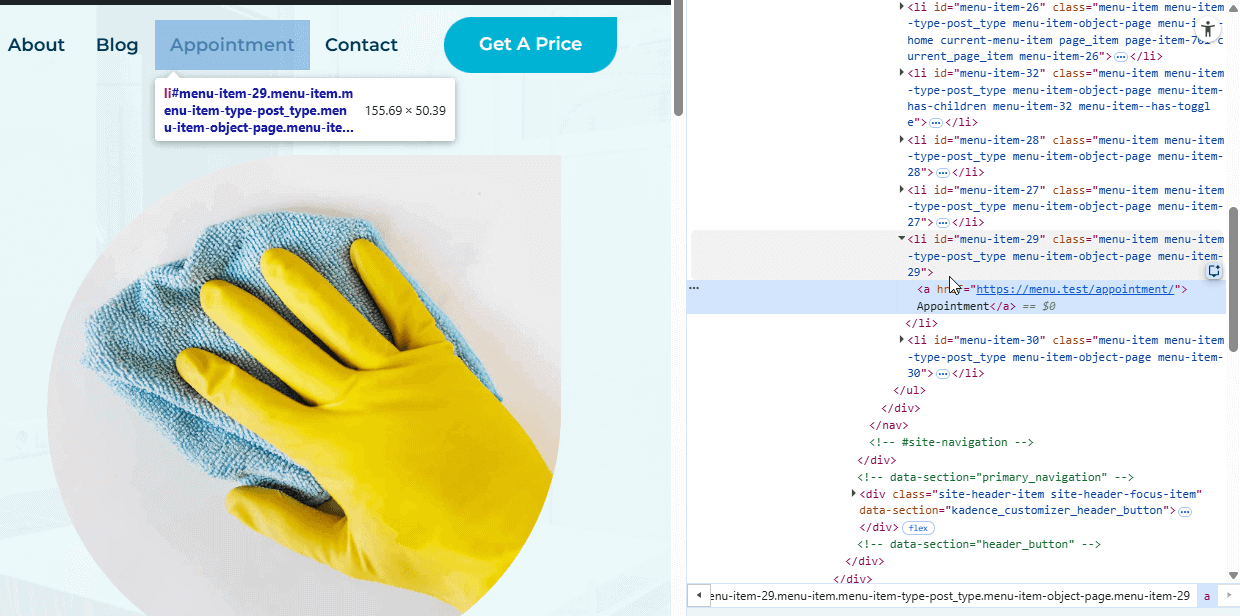
You can see by the HTML code that the menu item is number 29
We can also get this information from the backend by going to Appearance -> Menus and hovering over the down arrow for the menu item or sub-tem
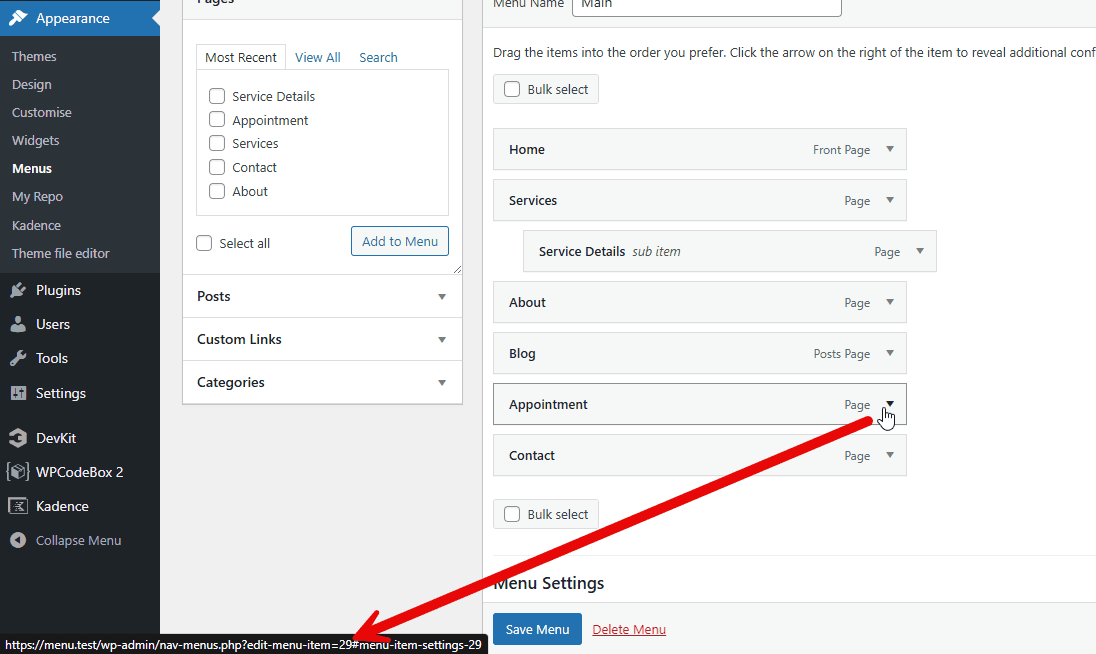
Again, you see that the menu item is 29
We now have all we need to begin to use our filter
How we’re using the filter
Our Snippet works like this:
- WordPress passes an array of menu items to the filter.
- The code checks today’s date (and optional time) against each rule you define.
- The first rule that matches:
- the date range,
- the optional time window,
- and the menu location (if set),
is selected.
- The code then finds the target menu item(s) by:
- menu item ID(s), or
- matching the existing menu label text.
- If enabled, it also includes all submenu items under those targets.
- For those items, the code overwrites the label and optionally the URL.
- The modified menu items are returned and rendered on the front end.
Visitors never see the original values during that render.
And the code looks a little like this:
add_filter('wp_nav_menu_objects', function ($items, $args) {
$items
An array of WP_Post objects (one per menu item).
Common properties used:
$item->ID– menu item ID$item->title– visible label$item->url– link URL$item->menu_item_parent– parent ID (for submenus)
$args
Menu arguments object.
Commonly used:
$args->theme_location– the menu location slug (primary,footer, etc.)
The advantages of doing it this way is its built after the menu is created, but before it’s rendered on the frontend. There is no render holdback here; it’s 100% before it’s seen on the front end by any user, which couldn’t be achieved with JavaScript.
Testing our Snippet
How do we know our snippet works? Well, I have coded in the ability for admins to preview what other time periods will look like by changing the preview date. This makes the date it’s being compared to what is set here, rather than what the server date/time is.
// -------------------------------------------------
  // PREVIEW MODE (admins only)
  // -------------------------------------------------
  // Set to 'YYYY-MM-DD' to preview, or '' to disable
  //Valantines Forced
$preview_date = '2026-02-02'; // e.g. '2026-02-10'Our Snippet
The following code is the snippet the article is about and proceeding it is a video showing it in action which will cover some of the points that are covered in this article.
<?php
/**
 * Simple Seasonal Menu Label + URL Swap
 *
 */

add_filter('wp_nav_menu_objects', function ($items, $args) {

  // -------------------------------------------------
  // PREVIEW MODE (admins only)
  // -------------------------------------------------
  // Set to 'YYYY-MM-DD' to preview, or '' to disable
  $preview_date = ''; // e.g. '2026-02-10'


  // -------------------------------------------------
  // CONFIGURE YOUR RULES HERE
  // -------------------------------------------------
  $rules = [
    [
      'menu_location' => '',
      'start' => '2025-12-28',
      'end'   => '2026-01-03',
      'label' => 'New Year',
      'url'   => '',
      'target_ids' => [29],
      'match_label' => '',
      'apply_children' => true,
    ],
    [
      'menu_location' => '',
      'start' => '2026-02-01',
      'end'   => '2026-02-14',
      'label' => 'Valentine’s',
      'url'   => '/valentines/',
      'target_ids' => [29],
      'match_label' => '',
      'apply_children' => true,
    ],
  ];
  // -------------------------------------------------

  // Determine "today"
  if (
    $preview_date &&
    is_user_logged_in() &&
    current_user_can('manage_options')
  ) {
    $today = $preview_date;
  } else {
    $today = wp_date('Y-m-d'); // site timezone
  }

  foreach ($rules as $rule) {

    if ($today < $rule['start'] || $today > $rule['end']) {
      continue;
    }

    if (!empty($rule['menu_location'])) {
      $loc = $args->theme_location ?? '';
      if ($loc !== $rule['menu_location']) continue;
    }

    $target_ids = array_map('intval', $rule['target_ids'] ?? []);
    $match_label = strtolower(trim($rule['match_label'] ?? ''));
    $apply_children = !empty($rule['apply_children']);

    // Build parent → children map
    $children_map = [];
    foreach ($items as $item) {
      if ($item->menu_item_parent) {
        $children_map[(int)$item->menu_item_parent][] = (int)$item->ID;
      }
    }

    // Find matched IDs
    $matched = [];
    foreach ($items as $item) {
      $id_match = in_array((int)$item->ID, $target_ids, true);
      $label_match = $match_label !== '' && strtolower(trim($item->title)) === $match_label;

      if ($id_match || $label_match) {
        $matched[] = (int)$item->ID;
      }
    }

    // Expand to children if requested
    if ($apply_children && $matched) {
      $queue = $matched;
      while ($queue) {
        $id = array_shift($queue);
        if (!empty($children_map[$id])) {
          foreach ($children_map[$id] as $child_id) {
            if (!in_array($child_id, $matched, true)) {
              $matched[] = $child_id;
              $queue[] = $child_id;
            }
          }
        }
      }
    }

    if (!$matched) continue;

    // Apply changes
    foreach ($items as $item) {
      if (in_array((int)$item->ID, $matched, true)) {
        $item->title = $rule['label'];

        if (!empty($rule['url'])) {
          $item->url = (strpos($rule['url'], '/') === 0)
            ? home_url($rule['url'])
            : $rule['url'];
        }
      }
    }

    break; // first matching rule wins
  }

  return $items;

}, 10, 2);
See it in Action?
You can see the snippet in action by viewing the video below